

Video
Turn still architectural renders into cinematic video and reels in Fenestra — add camera moves, scene transitions and motion for client presentations.
For best results we recommend Seedance 1.0 Pro at 720p or 1080p. Both examples on this page were generated with these settings.
Camera movements
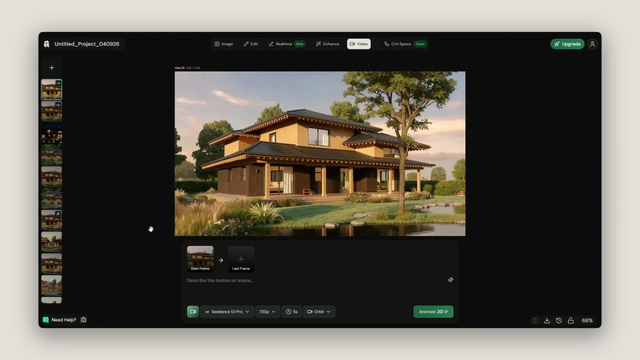
Select the image you'd like to start with, upload a new image, browse your assets or select a view from the left sidebar. This will always be your first frame.

Use the prompt bar to describe what you want. Simple camera movements produce the best cinematic results. Fenestra provides a set of Camera Movement presets to choose from:
- Zoom In / Zoom Out
- Pan Left / Pan Right
- Dolly In / Dolly Out
- Rise Up
- Orbit → moves the camera around the main subject. Works best when your image has a clear central focus.
- Static

For this example we're using Orbit. Feel free to add a prompt alongside your preset or keep it clean, for this example we're letting the camera movement do the work.
Click Animate to generate.
Orbit movement result
Start and End frame
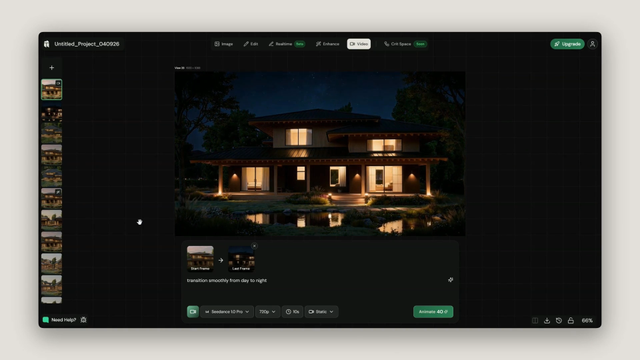
Start and end frame gives you control over both the beginning and end of your video. Use it to transition between day and night, two camera angles, different seasons or weather conditions.

Your first frame is the view you've selected or uploaded from the left sidebar. To add an end frame click Last Frame and upload a second image or browse your assets.
For this example we're starting with a morning shot and transitioning to a night time image prepared using Nano Banana 2.

A simple prompt helps inform the generation during the transition. Here is the prompt we used:
"Transition smoothly from day to night, keep the camera static, no camera movement."
We've also set the camera movement to Static to support the transition, setting a camera movement alongside start and end frame is optional but can help guide the result.

Click Animate to generate.
Day to night result
Next steps
- Sharpen your stills first with Enhance for the cleanest video frames.
- Set up cinematic camera angles directly from a 3D model in Edit — Working with 3D Models.
- Iterate live on your scene with Realtime before animating.