

Realtime
Real-time architectural rendering in Fenestra — turn 3D models, sketches and images into live renders and adjust the camera, prompt and style as they update.
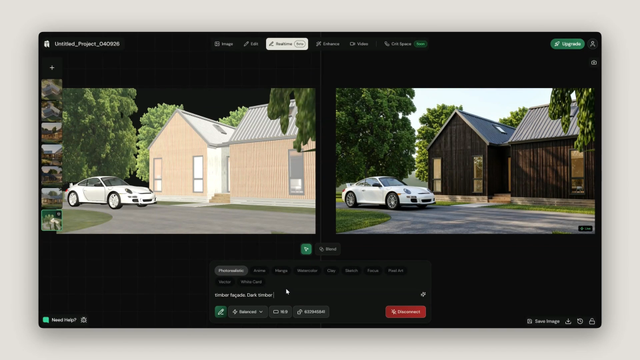
Side by Side Mode
Select a session from the left sidebar. For this example we're using a saved 3D model, but you can use 2D images, sketches or renderings just the same.
Layout
Your input sits on the left, you can pan and zoom around this window freely. Your output sits on the right. As long as you're connected, every camera movement, preset change or prompt update will generate a new output instantly.

Connect to Realtime
Click Connect to start your session. The first connection can take 10 to 20 seconds while compute is prepared. Once connected, if you're idle Fenestra will disconnect automatically to save your credits. Simply click Connect again to resume.
3D controls and camera views
On the right side of the workspace you'll find your 3D controls. Use these to adjust camera settings and switch between your saved preset views.
Styles
In the prompt bar you'll see style chips, Photorealistic, Sketch, Clay, Watercolor, Vector and more. Select one and your output updates immediately, no additional prompting needed.


Quality settings
- Turbo → fastest response, lower quality. Good for quick exploration.
- Balanced → best of speed and quality. Recommended for most workflows.
- Hi Def → highest quality, slower to respond. Use for your final output.
Prompting
Type any prompt and your output updates in real time. Changing "timber" to "dark timber" for example will update instantly.
Saving your work
Images are not saved automatically in Realtime. Save the ones you want to keep before disconnecting or moving on.
Blend Mode
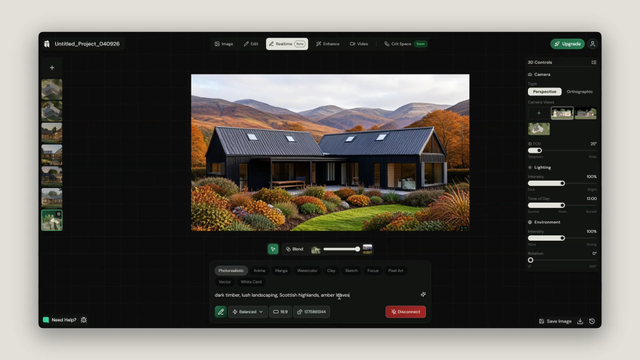
Select a session from the left sidebar, a 3D camera view, sketch, rendering or 2D image all work the same way.
Click Blend to switch from Side By Side to Blend mode.
Blend layout
In Blend mode your input and output are overlaid on top of each other. Use the slider to blend between the two, pull toward your input to see the original, pull toward the output to see the generation, or find a point in between.

Connect, styles, quality and prompting
Everything works the same as Side by Side Mode. Connect to Realtime, select a style, set your quality preference and prompt freely. Your output updates live as long as you're connected. As with Side by Side Mode, images are not saved automatically, save the ones you want to keep before disconnecting.
Next steps
- Set up your model and saved camera views in Edit — Working with 3D Models before jumping into Realtime.
- Bring your saved Realtime images to life with Video.